Portugues
Playing on phones and tablets
FredyGames runs in the browser, so every game technically opens on a phone. Whether it is playable there depends on the platform. Some players draw a set of on-screen buttons and others are keyboard-only. This guide sorts the catalogue by what a touch screen can do, and ends with tips that save a lot of frustration.
Platforms with on-screen buttons
On these players, the controls appear as soon as the browser reports a touch device (or on your first touch). Nothing to switch on. Most share one layout: held upright, a dark band with the buttons sits under the picture; held sideways, the buttons move to both sides. The picture shrinks to the space that is left, so a button never covers the game. Several fingers work at once, and you can slide a thumb from one button to the next, as on a real pad.
- NES, Game Boy (and Color), Game Boy Advance, Mega Drive, Master System and Game Gear, Atari 2600, Arduboy, MSX and Uzebox. A d-pad plus the buttons of that machine: Start and Select where it has them, L and R on the Game Boy Advance and Uzebox, A, B and C on the Mega Drive, FIRE, SELECT and RESET on the Atari 2600, and Space, Return and Esc on the MSX. Except on the Atari 2600, SAVE and LOAD buttons stand in for F2 and F4. Thwaite on the NES is an easy first test.
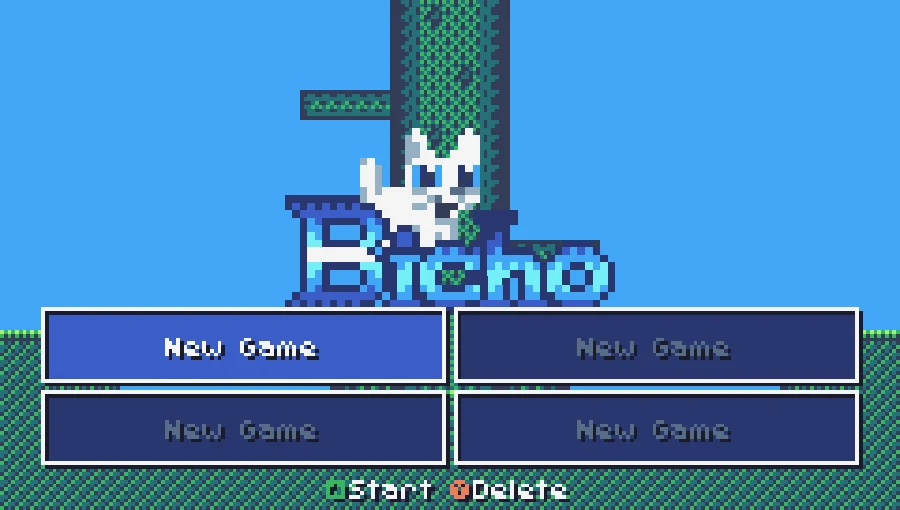
- TIC-80. The same kind of pad: d-pad, A, B, X and Y, and a MENU button for Esc (there are no save buttons). Bicho, a small metroidvania, shows the pad on touch devices, though its page admits it was only tested with a keyboard.
- CHIP-8. The same pad (d-pad, A, B, SAVE and LOAD) for games that use the usual gamepad mode. A game built around a hexadecimal keypad or swipes uses the controls of the Octo emulator instead.
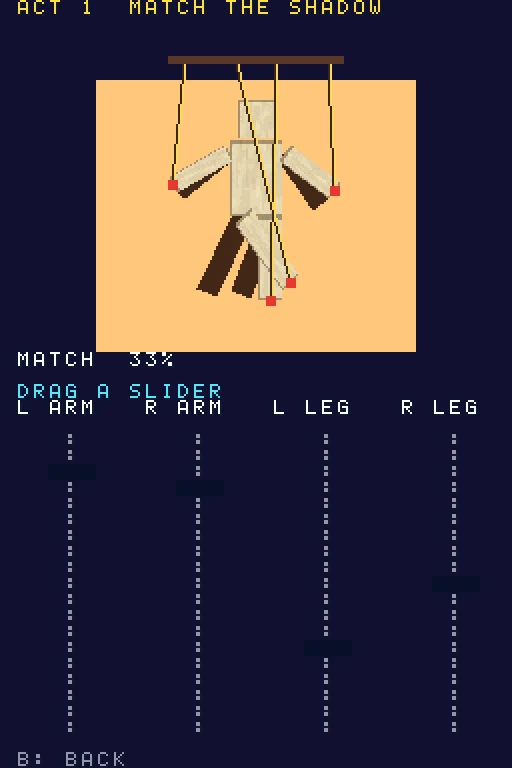
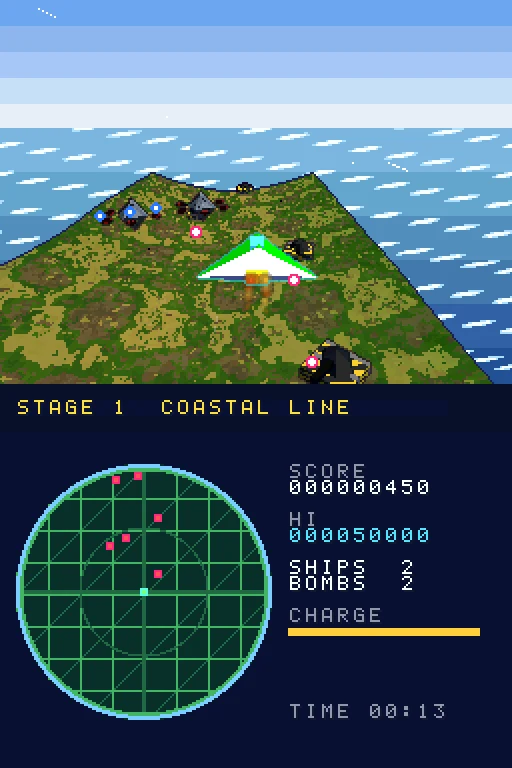
- Nintendo DS. The two screens are both on the page, and the lower one is the touch screen, so a finger does what the stylus did. The console buttons sit in a strip under the screens, or at the sides when the device is held sideways, and the screens shrink so the buttons never cover the picture. Lightenette is mostly played on the touch screen, dragging sliders and pegs. In Corvane you tap an enemy on the radar to lock your missiles on it.
- Atari 5200. A d-pad, two fire buttons, Start, Pause and Reset appear, plus a 123 button that opens the twelve-key keypad the console had. Curse of the Lost Miner is a fine test, since a jump needs a direction and the fire button together.
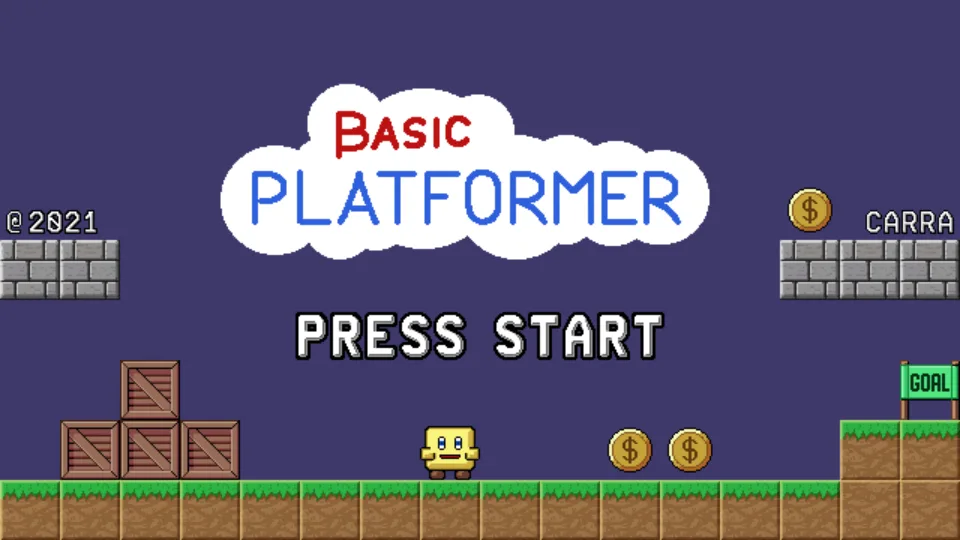
- Vircon32. The console's whole pad is drawn on screen: d-pad, A, B, X and Y, L and R, and Start. Basic Platformer is a simple game to try it on.
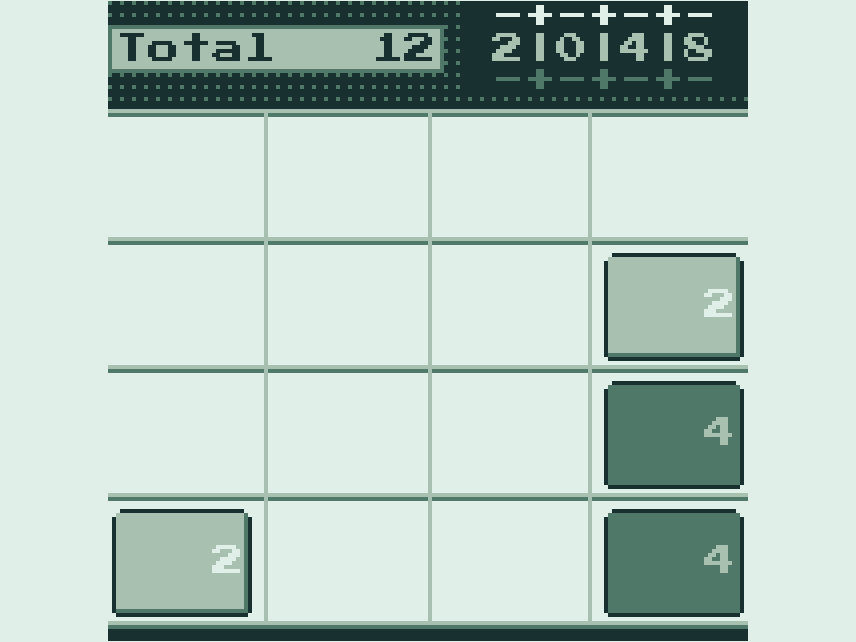
- WASM-4. The runtime shows a d-pad and buttons on touch screens. Galdr and 2048 both mention it.
Saves and states work as on a computer: see Saving your progress in browser games for which buttons save.
Games that still need a keyboard
Some games have no touch controls at all, and the catalogue says so. On a touch screen their page shows a notice ("This game needs a keyboard (or a gamepad)") and their card in the game lists carries a Keyboard tag. Both stay hidden on a computer. This includes many DOS games, Freedoom and a number of web games. For those you want one of two things:
- A Bluetooth gamepad. Pair it in your phone's settings, open the game, click Play and press a button. It also adds a second way to play the console games above. The details are in Playing with a gamepad.
- A Bluetooth keyboard, which works on most tablets. Key tables are in Playing retro games in your browser.
A game without the tag is not necessarily comfortable on a phone, so the Controls card on its page is still the last word.
DOS, text and point-and-click
- DOS games. The DOS player includes a "mobile controls" option in its settings, but most games were made for a keyboard and a mouse, and many use half the keys. Games that need the mouse do work in the player (we fixed the mouse handling for some of them), but try them before counting on a finger. On a tablet with a keyboard they are fine; on a phone, expect trouble, and expect the "Keyboard" tag.
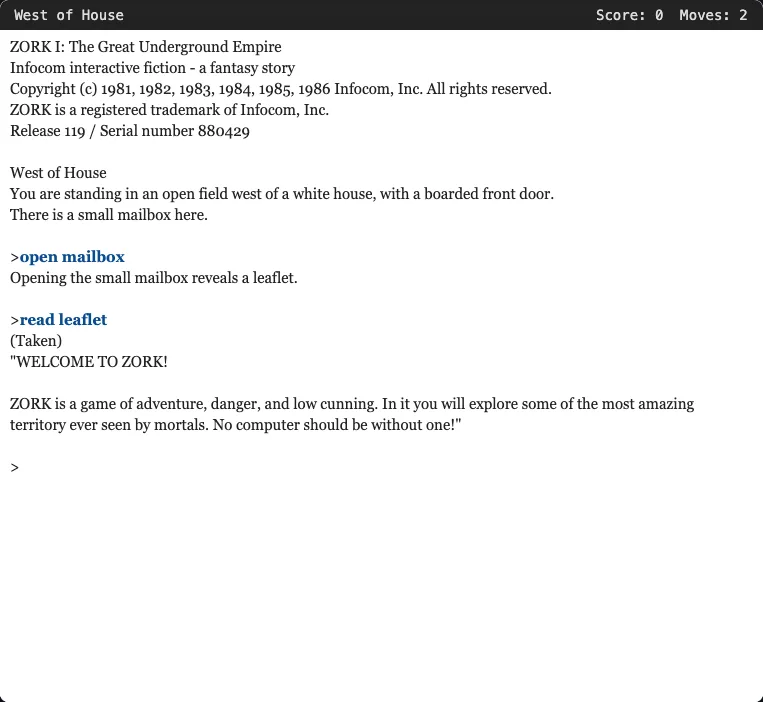
- Text adventures. These are the most phone-friendly old games there are: you type commands, so the on-screen keyboard is all you need. Zork I works that way. See the text adventure guide.
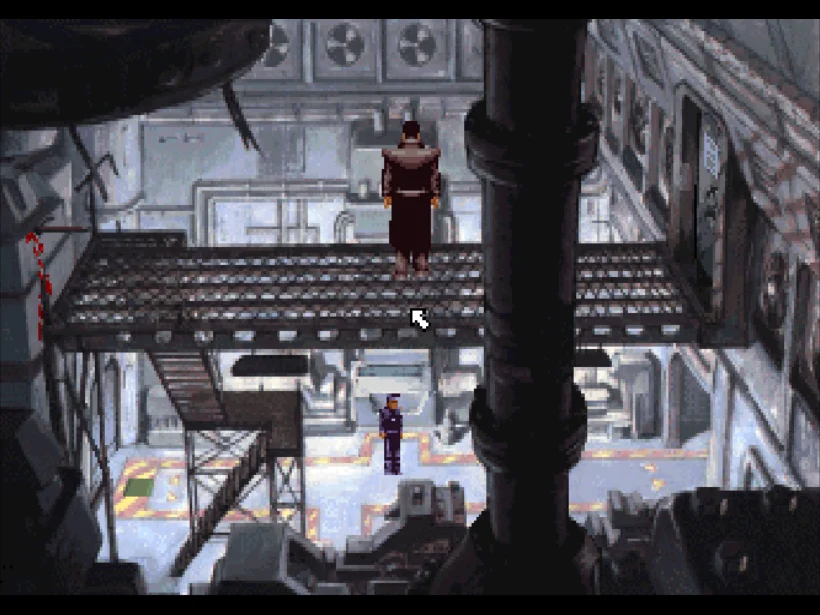
- ScummVM adventures. A tap acts as a left click. That covers most of Beneath a Steel Sky, but the game uses both buttons, so some actions are out of reach without a mouse. Its page says so.
Browser games: it depends on the game
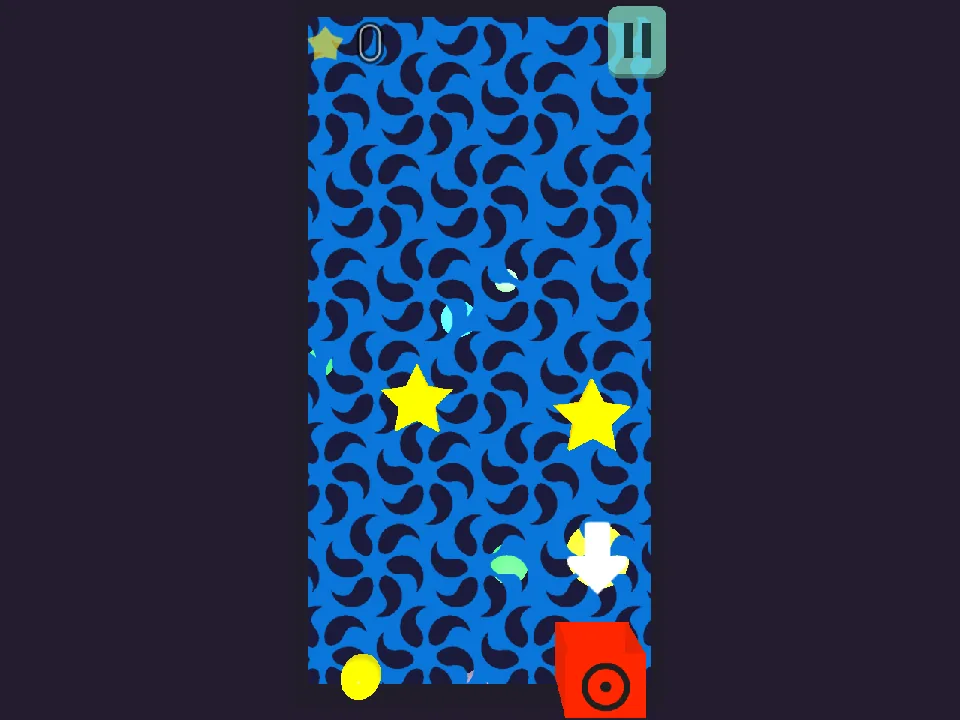
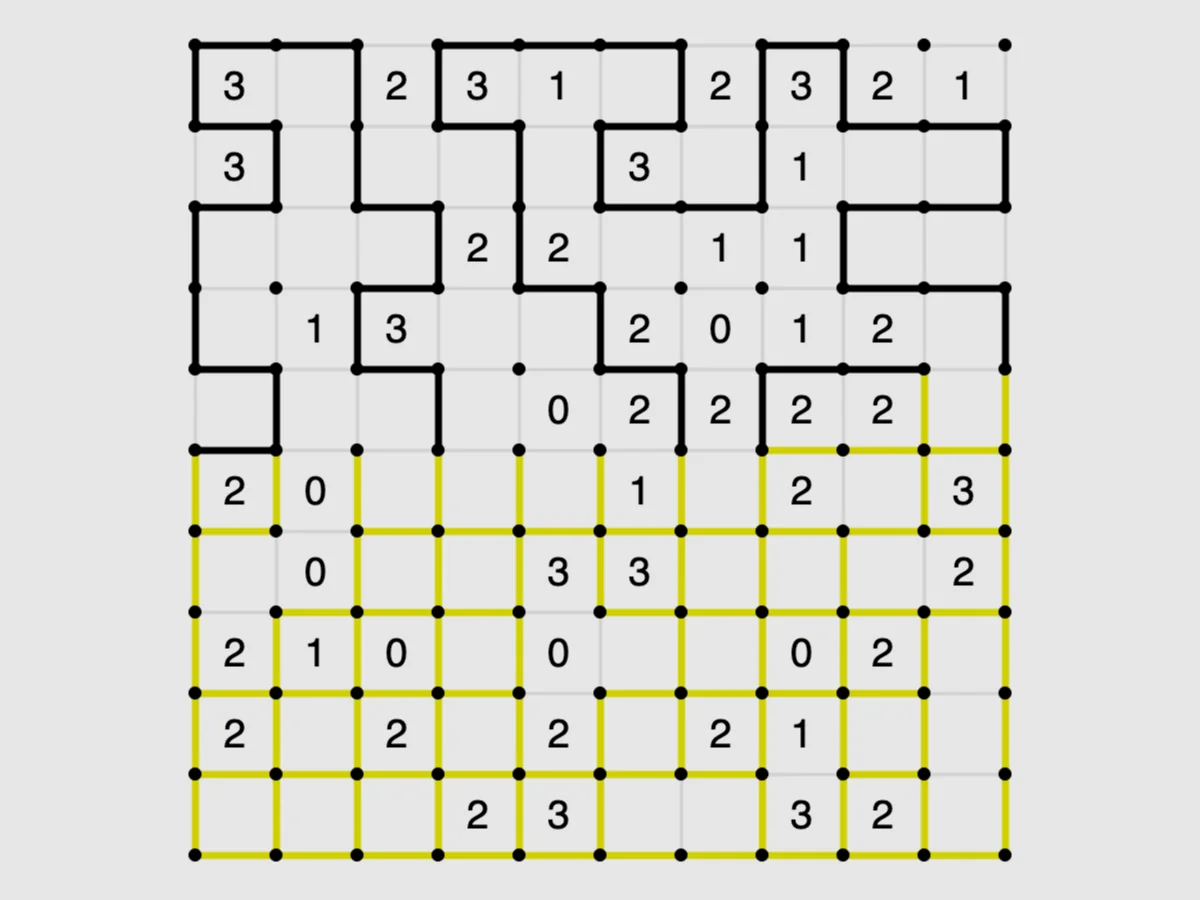
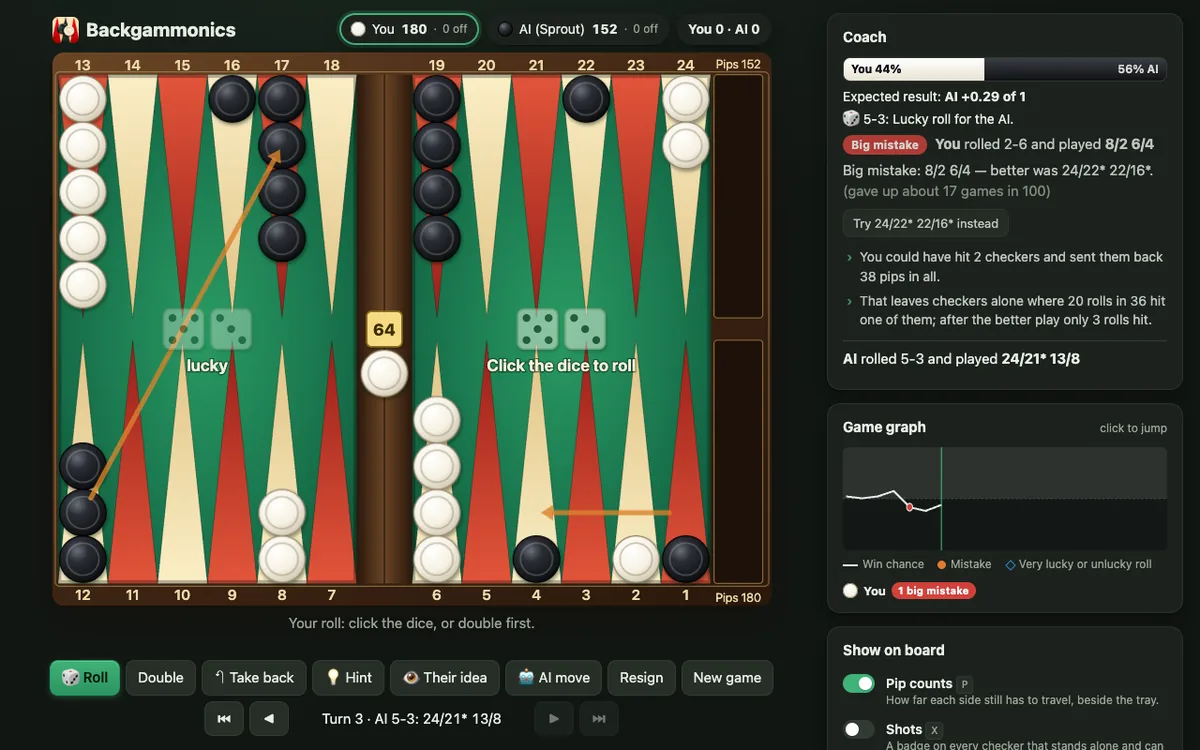
Games written for the web have no common input scheme, so read the page. Some were built for phones: Ball2Box is a tall, swipe-to-throw game made for them, and Backgammonics plays by tap. Loopy and the other Simon Tatham puzzles use taps to draw lines or mark squares, a good fit for a touch screen. Others admit the limit: Golf Solitaire says dragging cards may not work well on phones. Many pages answer the phone question directly in their FAQ. If a game says it needs a keyboard, believe it.
A quick test before you install anything on your pocket: open the game page and read Controls. If they list keys only, plan for a keyboard.
Tips for touch
Turn the phone sideways. Console screens are wide. In landscape, the console players move their buttons to the sides, and the picture usually becomes much bigger. Once you press Play on a touch screen, the game frame also grows taller (up to about 80% of the screen height) so the buttons fit; a few games made for upright screens get a tall frame in the same way.
Use fullscreen. There is no single fullscreen button for every player. The game frame allows fullscreen, so use your browser's own option where it has one. On some phones, especially iPhones, fullscreen for embedded content may not be offered; landscape still gives the biggest picture. Some games, such as AAAAXY, have their own fullscreen key.
Click Play first and wait. Nothing downloads before the click. Larger games, the ScummVM adventures especially, download tens of megabytes; use Wi-Fi if you are on a metered connection.
Unmute. Browsers keep audio quiet until you touch the page, and on iPhones the ring/silent switch can mute a web game. If a game is silent after Play, tap the screen once and check the switch and volume.
Keep fingers off the browser edges. Swipes from the screen edges trigger back and app switching. Some games use the whole screen, so rest your thumbs inside the buttons.
Avoid pinch zoom. It does not help and can scroll the page away from the game.
Saves still work, per browser. Progress stays in that phone's browser, and clearing site data erases it. Where a player has SAVE and LOAD buttons, they take the F2 state. See Saving your progress in browser games.
Add to the home screen. The site ships a web app manifest with its own icons, so your browser can usually add it as an icon, which opens without the address bar. It does not work offline.
A good first set
Start with something designed around a screen you can touch: Lightenette on the DS, Ball2Box, a Simon Tatham puzzle or a text adventure. Then try a console game with the on-screen pad, and later with a Bluetooth one. That mix shows how much of the catalogue a phone can reach, and where a laptop is simply better.