Portugues
Playing with a gamepad on FredyGames
Retro games were made for controllers, and a pad in your hands usually beats a keyboard. Most of the players on FredyGames can read one. Connect it, press a button, and play, with no setup screen in between. This guide explains what works, how buttons are matched to the original consoles and what to check if nothing happens.
Connecting a controller
The browser exposes pads through the standard Gamepad API, so there are no drivers to install on a normal computer.
- Plug in a USB controller, or pair a Bluetooth one with the system.
- Open a game and click Play.
- Press any button while the game has focus. Browsers hide a controller until you use it on the page, so a pad that is plugged in but untouched looks absent.
- If it still does nothing, click once on the game and press again. On a phone or tablet, a paired Bluetooth pad works the same way, and the on-screen buttons stay available (see Playing on phones and tablets).
Pads from the usual families (Xbox-style, PlayStation-style and the many generic ones that copy them) normally report the same layout, which is what the players expect. If your face buttons come out swapped or one button does nothing, try the pad wired, or try another browser. A few adapters and older controllers report unusual layouts, and we cannot map those; the WASM-4 runtime says "Unsupported gamepad" for them, while other players simply read the buttons by position.
The mapping idea
The players map by position, not by label, using the layout browsers call "standard". With an Xbox-style pad, the bottom face button (A on Xbox, Cross on PlayStation) is the console's lower button, the right one is its right button, and so on. The d-pad and the left stick both steer. Start and Select (Menu and View on Xbox, Options and Share on PlayStation) press the console's Start and Select.
Below, "bottom" and "right" mean face buttons.
| Platform | Buttons |
|---|---|
| Game Boy | bottom = B, right = A, Start, Select |
| Game Boy Advance | bottom = B, right = A, shoulder buttons = L and R, Start, Select |
| Nintendo DS | bottom = B, right = A, left = Y, top = X, shoulders = L and R, Start, Select |
| Mega Drive | left = A, bottom = B, right = C, top = Y, left shoulder = X, right shoulder = Z, Start, Select = Mode |
| Master System and Game Gear | bottom or left = button 1, right or top = button 2, Start |
| PC Engine | right or top = button I, bottom or left = button II, Run, Select |
| Arduboy | bottom or left = A, right or top = B |
| Uzebox | like a SNES pad: bottom = B, right = A, left = Y, top = X, shoulders = L and R, Start, Select |
| Vircon32 | same face and shoulder layout as the Uzebox, Start |
| MSX | acts as the joystick in port 1: bottom = trigger 1, right = trigger 2, Start = Space |
| CHIP-8 | d-pad = arrows, A = key E, B = key Q |
| Atari 5200 | the left stick is the real analogue joystick, A and B = fire buttons, X and Y = the * and # keys, Select = Pause, Start |
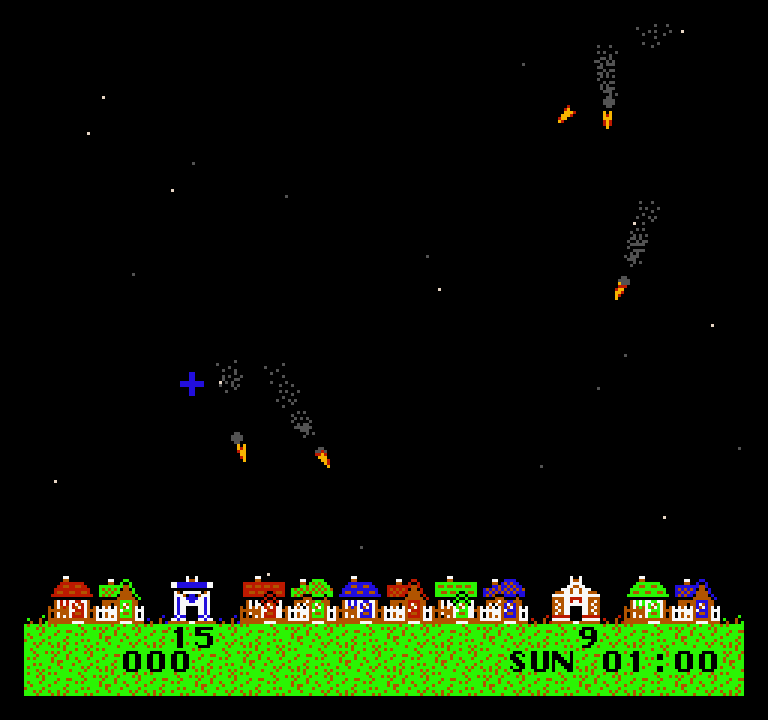
The NES, Atari 2600, TIC-80 and WASM-4 players use the emulator's own gamepad code, so their mapping is the project's choice. On TIC-80 and WASM-4 a controller works with no setup, and a game page such as Thwaite tells you when a NES pad is expected.
Games that benefit
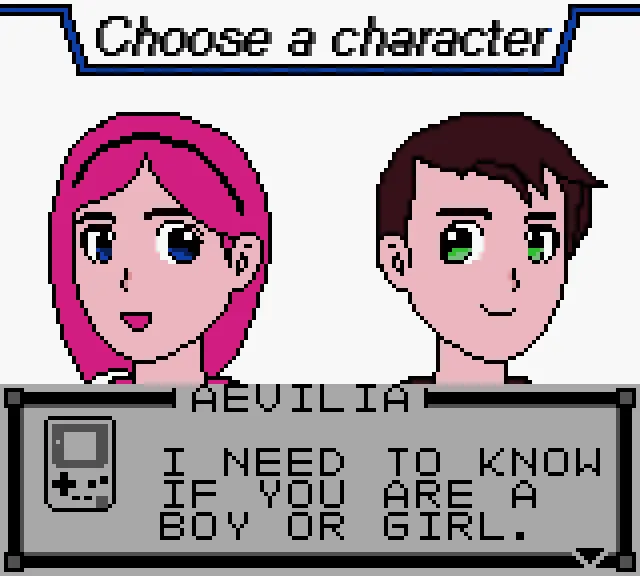
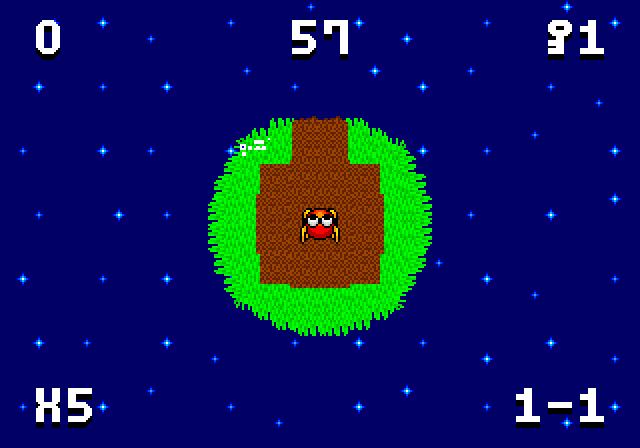
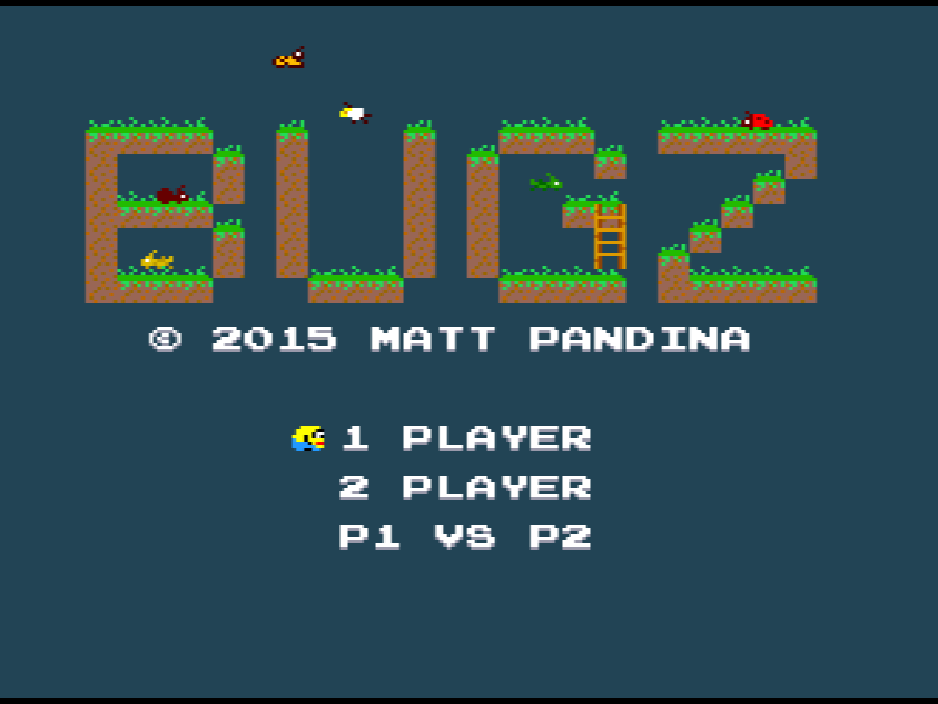
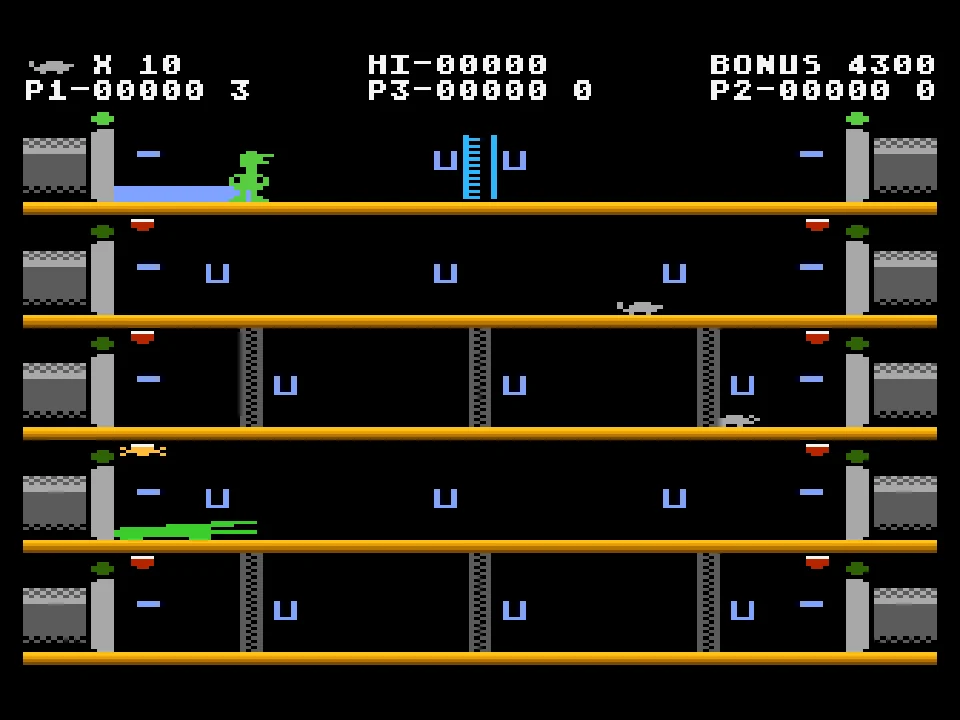
On Game Boy and Mega Drive, a pad turns run-and-jump games from awkward to natural. Aevilia, a Game Boy Color role-playing game, and Miniplanets REMIX, a Mega Drive platformer where you circle tiny planets, both list gamepad support on their pages. Ratcatcher on the Atari 5200 uses the stick as an analogue joystick, as the console did. Bugz on the Uzebox treats the keyboard and the first pad as player 1, and a second pad as player 2, which leads to the next point.
Two or more players
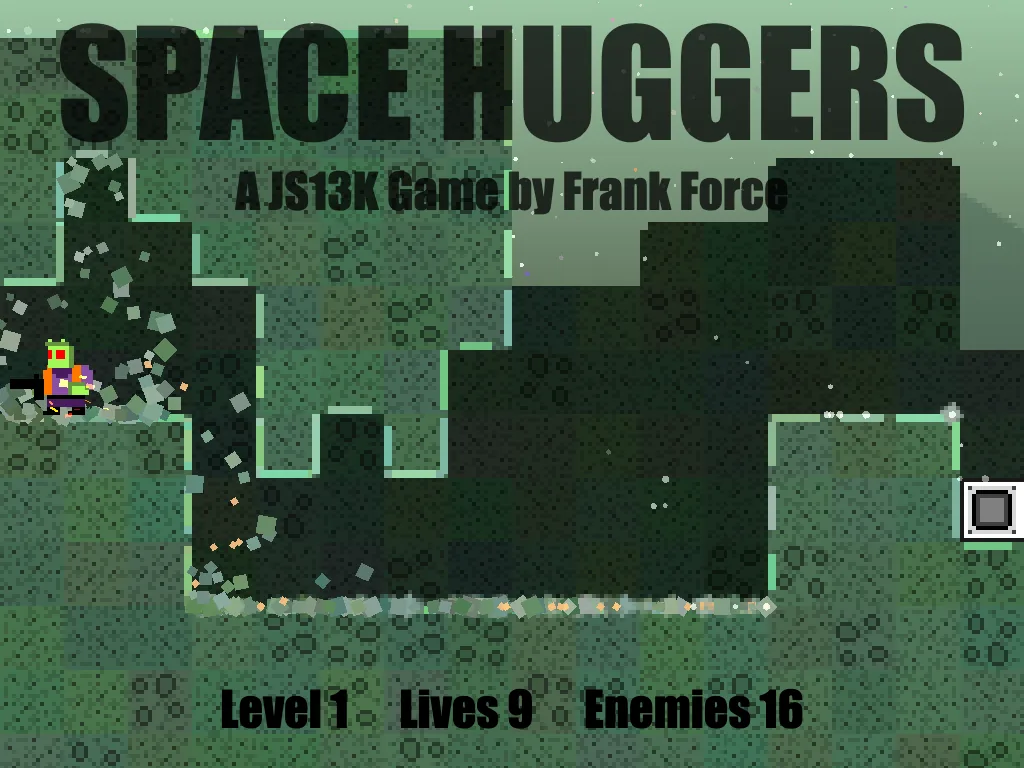
Only some players give each controller its own player. Uzebox, Vircon32 and Atari 5200 do: the first pad is player 1, the second is player 2. The NES player does too: Thwaite lists a second gamepad for its co-op mode. Most of the other consoles read only the first controller they find, so plan on the keyboard for a second person there. For two-player games on one keyboard or on pads, see Two players, one keyboard. Space Huggers, a web game, accepts up to four gamepads; press a button on a new pad and a new player joins.
Browser games set their own rules
Web games and engines such as Godot or Love do not share a key table. Each reads the gamepad in its own way, and the page lists the buttons.
- Bee Kind, a small shooter made for js13kGames: left stick to move, the south button to fire.
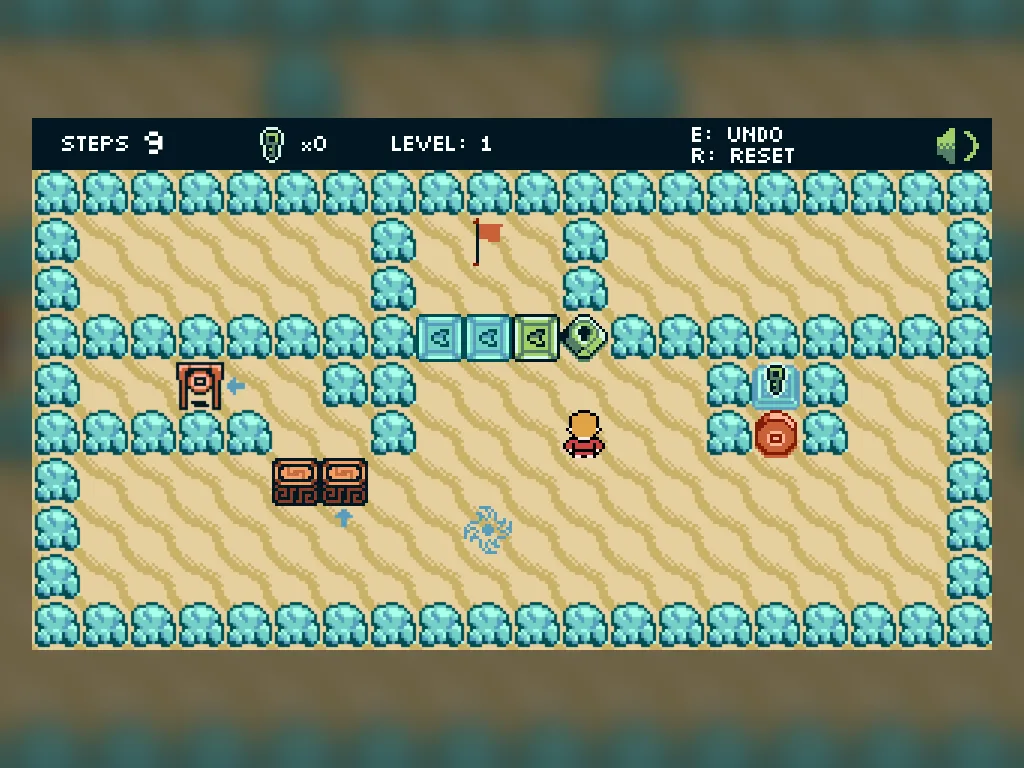
- 13 Steps to Escape: the stick moves, A confirms, the left shoulder or Y undoes and the right shoulder restarts.
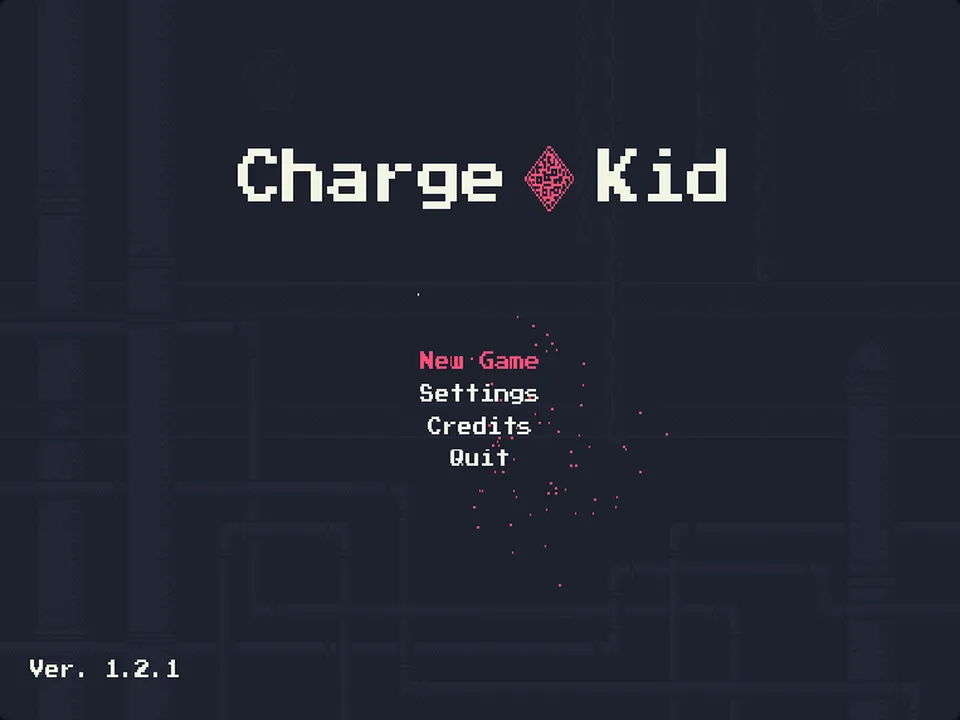
- Charge Kid: gamepads work, and the Settings menu lets you change keyboard and gamepad buttons.
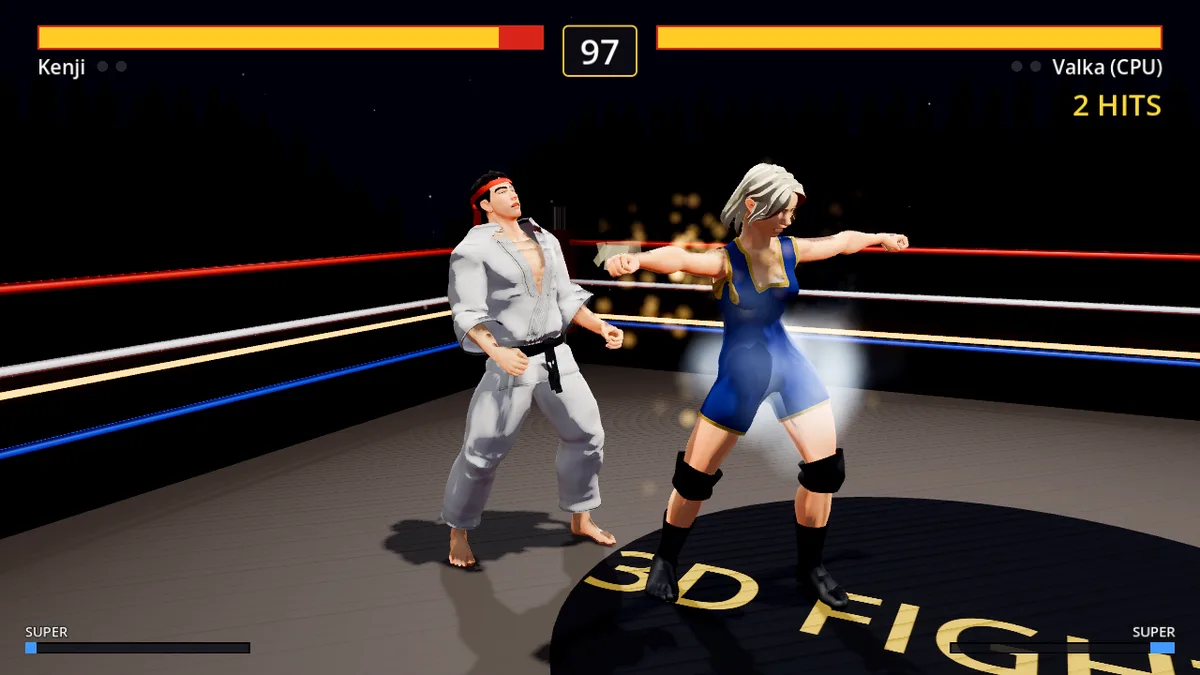
- 3D Fighter: keyboard first, gamepads work too, including two for versus.
Not every game supports a pad. Bike needs a keyboard, and so do several others; the page answers the question plainly. DOS games, text adventures and ScummVM point-and-click adventures are designed for keyboard and mouse. 2048 on WASM-4 accepts a pad as well.
When a controller does nothing
- Press a button first. Moving a stick may not wake a pad up.
- Click the game and keep the tab focused. Browsers stop reporting pads to background tabs.
- Try one pad at a time. Most players use the first connected controller, and another device that shows up as a gamepad, such as a wheel or an adapter, can take that place.
- Reconnect the pad if it sleeps, then press a button.
- Save states stay on the keyboard. F2 and F4 are keys, not pad buttons. (On a touch screen, the console players draw SAVE and LOAD buttons instead.)
- Dead zones. On the digital consoles the stick acts as a d-pad once it passes about half its range, so a worn stick may drift; use the d-pad for precise movement. The Atari 5200 player is the exception: it reads the stick as analogue and ignores only the first 12% of its travel.
A small setup that works well
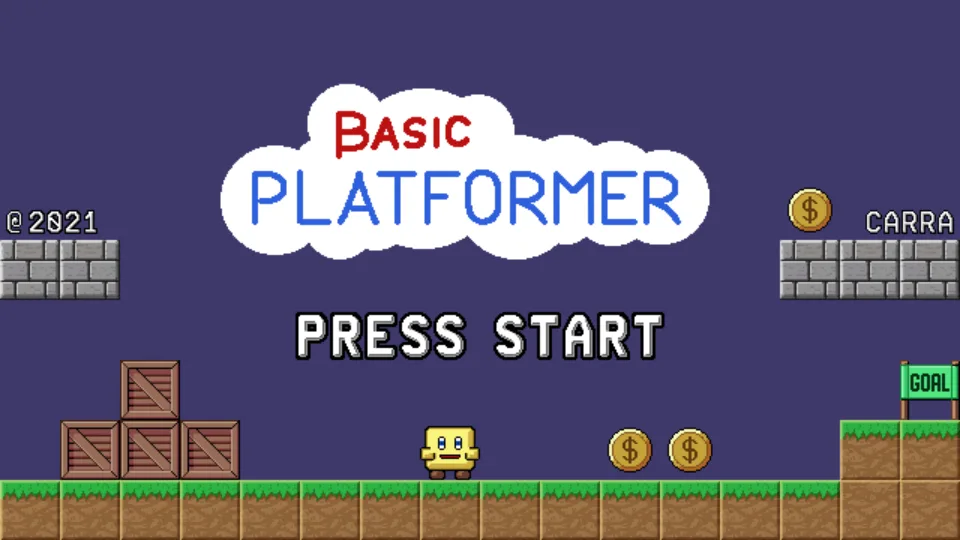
Wired or paired Xbox-style controller, a wide browser window or fullscreen, a game with a pad note on its page. Start with Thwaite to test the connection, then try Basic Platformer on Vircon32, a game built around a plain pad whose page notes controller support.