Portugues
Playing retro games in your browser: controls, gamepads and saves
Every game on FredyGames runs inside the page you are reading, with no installer, plug-in or account. Behind the Play button there is an emulator or interpreter compiled for the web, and each one has its own habits: which keys it listens to, whether it understands a gamepad, and how it remembers your progress. This guide collects the practical details in one place, so you can spend less time guessing and more time playing.
What happens when you click Play
Until you press Play, a game page is just text, screenshots and a poster image. Nothing heavy is downloaded: the emulator and the game file are fetched only after the click. That keeps the pages fast and means that browsing the catalogue costs you almost no data.
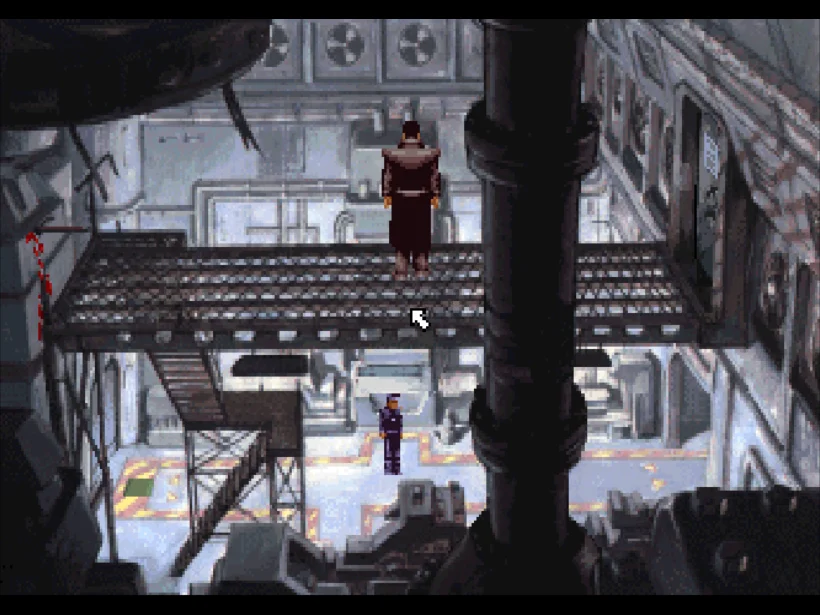
Once you click, the player loads in the frame where the poster was. Small cartridge games start almost instantly. Larger ones take longer: a DOS game has to boot a virtual PC, and the point-and-click adventures that run in ScummVM, such as Beneath a Steel Sky, download tens of megabytes of graphics and speech before the first scene. After the first load, your browser usually keeps a cached copy, so the next visit is quicker.
Two habits solve most first-time problems:
- Click inside the game once. The player only receives key presses while it has focus. If the arrows scroll the page instead of moving your character, click on the game screen and try again.
- Expect sound to start after your first input. Browsers block audio until you interact with the page. The Play click usually counts, but if a game stays silent, press a key or click inside it.
Keyboard layouts by platform
The emulators follow a common idea where they can: the arrow keys are the directional pad, X and Z are the main buttons, and Enter is Start. The details differ because the original controllers did. The table below was checked against the players themselves; each game page also lists its own controls.
| Platform | Movement | Main buttons | Start / Select and extras | Save states |
|---|---|---|---|---|
| NES | Arrows | X = A, Z = B | Enter = Start, Shift or Ctrl = Select; S and A are turbo buttons | F2 / F4 |
| Game Boy | Arrows | X = A, Z = B | Enter = Start, Shift or Ctrl = Select | F2 / F4 |
| Game Boy Advance | Arrows | X = A, Z = B | A = L, S = R, Enter = Start, Shift = Select | F2 / F4 |
| Mega Drive | Arrows | Z / X / C = A / B / C | A / S / D = X / Y / Z (six-button pad), Enter = Start, Shift = Mode | F2 / F4 |
| Master System and Game Gear | Arrows | Z = button 1, X = button 2 | Enter = Start / Pause | F2 / F4 |
| Atari 2600 | Arrows or WASD | Space or V = fire | Enter = console Reset, Backspace = Select, F1 / F3 = left / right difficulty switch, P = pause; player 2 uses IJKL and B | None |
| Arduboy | Arrows | Z = A (left button), X = B | — | F2 / F4 |
| CHIP-8 | Arrows (also WASD) | The 16-key keypad: 1 2 3 4 / Q W E R / A S D F / Z X C V; Space = E | — | F2 / F4 |
| TIC-80 | Arrows | Z = A, X = B, A = X, S = Y | Esc = game menu | Game's own save |
| MSX | Arrows | Space and the computer's keys | F1, F3, F5 as on the MSX; Alt = GRAPH | F2 / F4 |
| Uzebox | Arrows | X = A, Z = B, S = X, A = Y | Q / W = L / R, Enter = Start, Shift = Select | F2 / F4 |
| WASM-4 | Arrows | X or Space = button 1, Z or C = button 2 | Enter = runtime menu, R = restart; ESDF with A/Q and Tab/Shift is player 2 | 2 / 4 |
| DOS | Game's own keys | Usually keyboard, sometimes mouse | Read the game page | Game's own save |
| Adventures (ScummVM) | Mouse | Left and right click | F5 = game menu, Ctrl+F5 = ScummVM menu, Esc = skip a scene | Game's own save |
| Text adventures | Typed commands | — | save, restore, undo |
Game's own save |
| Browser games | Game's own keys | Mouse, keyboard or touch, depending on the game | Read the game page | Game's own save |
A few platforms deserve a note:
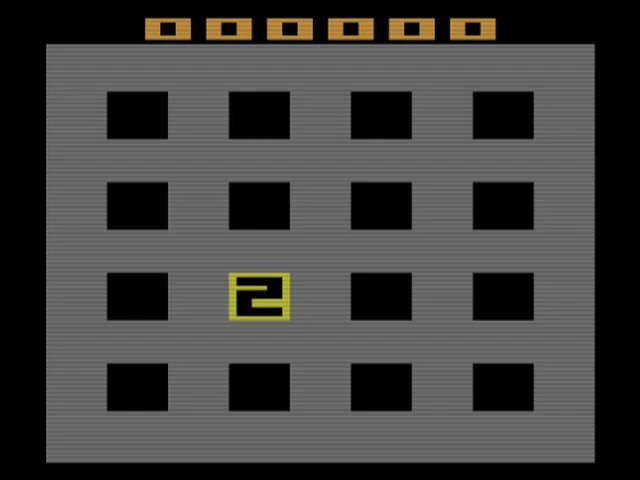
- Atari 2600. The console had switches instead of a Start button. Press Enter (Reset) to begin most games, and Backspace (Select) to cycle through game modes. The difficulty switches start in the B position, the beginner setting; F1 and F3 flip them to A and back, and a message confirms the change. 2048 2600 is a good place to try them.
- Arduboy. On the real device, A is the left button and B the right one, which is why Z (on the left of your keyboard) is A here. A few games were designed to be held sideways; the player rotates the picture and remaps the arrows so they still follow the screen.
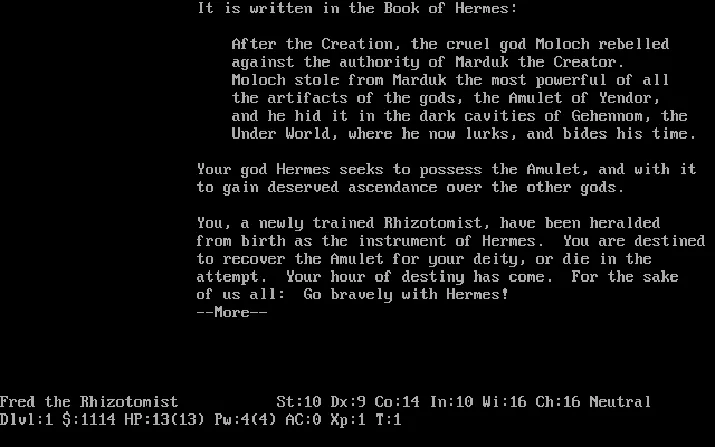
- MSX and DOS. These were computers, so the whole keyboard counts. MSX games often ask you to press Space or a function key; DOS games may use letters, numbers and the mouse. NetHack, for example, uses nearly every key.
- Browser games. These were written for the web, so there is no emulator and no shared key table: each game listens to the keys its author chose, and its page lists them. Many work with a mouse or a finger. The Simon Tatham puzzles share one set of controls: left and right click, the arrow keys, and N, U and R for new game, undo and redo.
- NES and Uzebox, two players. On the NES player, a second controller is mapped to the numeric keypad. On the Uzebox, the first browser gamepad joins the keyboard as player 1 and a second gamepad becomes player 2.
If you use a Mac laptop, the function keys may control brightness and volume by default. Hold Fn together with F2 or F4, or change the setting in your system's keyboard preferences.
Gamepads
Most console players read a USB or Bluetooth controller through the browser's Gamepad API. Connect the pad, then press any button while the game page is open: browsers only reveal a controller after it has been used on the page.
The Game Boy, Game Boy Advance, Mega Drive, Master System, Arduboy, MSX, CHIP-8 and Uzebox players map buttons by position, using the standard layout most modern pads share. The d-pad and the left stick both steer, the face buttons become the console's action buttons, and Start and Select (Menu and View on some pads) do what you would expect. On the Game Boy, Game Boy Advance and Uzebox, the bottom face button is B and the right one is A, matching where those buttons sat on the original controllers. On the Mega Drive the shoulder buttons add the extra X and Z of the six-button pad, and on the Game Boy Advance they are L and R. On the MSX, the controller acts as a joystick in port 1, with Start pressing Space. The TIC-80, WASM-4 and Atari 2600 players use the controller support built into their own runtimes.
The NES player is designed around the keyboard, and DOS games, ScummVM adventures and text adventures are meant to be played with keyboard and mouse. Browser games vary: some, such as Space Huggers, accept up to four gamepads, and the game page says so.
Two kinds of saves
It helps to know the difference between the two ways a game can remember your progress.
In-game saves are the ones the game itself offers: battery saves on a cartridge, a save slot in a menu, or the save command in a text adventure. On the Game Boy, Game Boy Advance, Mega Drive and Arduboy, cartridges that had battery-backed memory or EEPROM keep that data automatically, per game. ScummVM adventures save from the game's own panel (F5), DOS games from their own menus, and TIC-80 and WASM-4 games through the storage their consoles provide.
Save states are snapshots of the whole emulated machine. Press F2 to take one and F4 to return to it, at any moment, even in games that never had a save feature. There is one state per game, so a new F2 replaces the previous snapshot. On WASM-4, the runtime's own keys are 2 and 4, and those states last only while the page stays open.
Save states are convenient, but in-game saves are sturdier. A snapshot depends on the exact version of the emulator that made it, and if a player is updated, an old state may be refused with a message saying it comes from another version. For long games, use the game's own save and treat F2 as a safety net.
Where your saves live
FredyGames has no accounts and no servers that store your games. Every save, whether in-game or a state, is kept in your browser's local storage on the device you are using. That has some consequences worth knowing:
- Clearing site data deletes your saves. If you clear cookies and site data for fredygames.com, or use a cleaning tool that does, your progress goes with it.
- Private or incognito windows forget everything when you close them.
- Saves do not follow you to another browser or another device. Progress in Firefox on your laptop is invisible to Chrome on your phone.
- Storage can fill up or be blocked. If a save fails, the player says so instead of failing silently. Freeing space or allowing site storage usually fixes it.
Fullscreen, phones and tablets
There is no separate fullscreen button for most players; the simplest way to fill the screen is your browser's own fullscreen mode (F11 on Windows and Linux, Control+Command+F on macOS). The DOS player has its own controls, including fullscreen.
On phones and tablets, the experience depends on the platform. TIC-80, WASM-4 and CHIP-8 games show on-screen buttons on touch devices. Text adventures work well with the on-screen keyboard. In ScummVM adventures, a tap acts as a left click. Many browser games were designed for touch, and the Simon Tatham puzzles add a Mark button for the right-click action and, in the number puzzles, a row of number keys below the board. The other console players, such as NES, Game Boy and Mega Drive, have no touch controls, so on a phone they need a Bluetooth gamepad or keyboard. DOS games are best on a computer.
Performance tips
These emulators are light by modern standards, but they run on a single browser tab and need a steady frame rate. If a game stutters or the sound crackles:
- Keep the browser up to date; recent versions of Chrome, Edge, Firefox and Safari all run the players.
- Close heavy tabs, video calls and background downloads.
- On a laptop, plug in the charger or leave power-saving mode, which can throttle the processor.
- Make sure hardware acceleration is enabled in the browser settings.
- If something seems stuck, reload the page: the console resets, but battery saves and states remain.
Ready to play
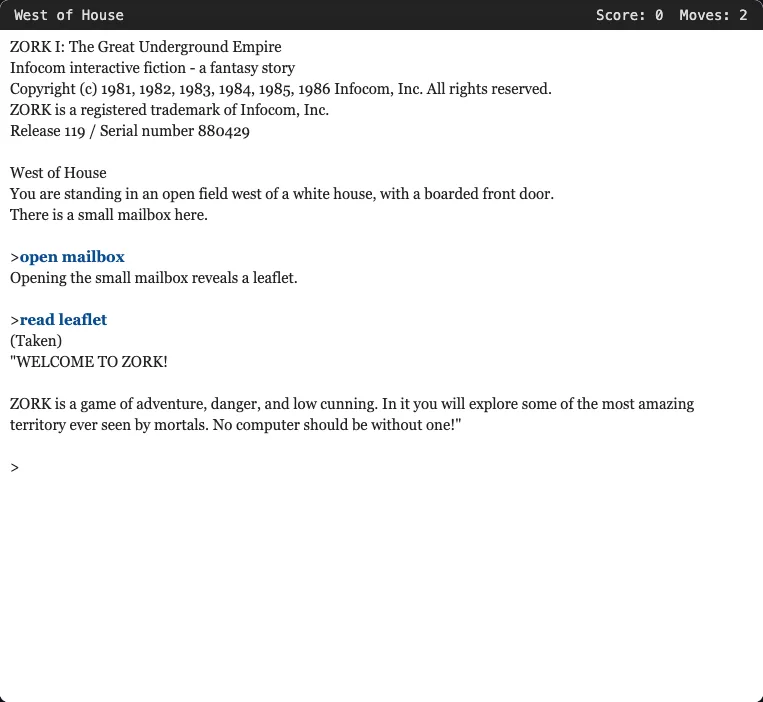
With a key table and a sense of where saves go, most of the catalogue is a click away. A good tour: Thwaite on the NES, Tobu Tobu Girl Deluxe on the Game Boy, The Purple Night on the Game Boy Advance and Miniplanets REMIX on the Mega Drive. For the newer systems, see fantasy consoles explained and tiny open consoles: Arduboy and Uzebox. For games made for the web itself, read browser games and js13kGames, and for the ScummVM adventures, freeware adventure classics. If typing is more your style, start with our beginner's guide to text adventures and Zork I. To learn where these games come from, read what homebrew is and how we check every licence.